The short answer
My Wi-Fi dead zones were not a broadband problem. My plan was fine; my router was just in the wrong place, shouting through too many walls.
The fix that actually worked was a combination of three things: moving the router to a central, open spot (free), adding one mesh Wi-Fi unit in the hallway (the single best purchase), and replacing an old single-band extender that was making things worse. Total spend: less than one month of my broadband bill, and every room now gets a usable signal.
The problem I lived with for a year
I want to be honest about how long I tolerated this. For nearly a year, my video calls froze the moment I walked from the living room to the bedroom. The kitchen was a dead zone — recipes would not load, music would buffer mid-song. The balcony, where I actually like to sit in the evening, might as well have been offline. And every time it happened, I blamed the internet provider.
Looking back, the Wi-Fi dead zones were worst wherever a wall or a floor stood between me and the router. Once I moved the router, those Wi-Fi dead zones shrank fast.
That is the first mistake most of us make. We pay for a speed, we run a speed test next to the router, we see a big number, and we assume the whole house should get that number. It does not work that way.
Wi-Fi is radio. It gets weaker with distance, and it gets weaker through walls — especially concrete walls, metal doors, and kitchens full of appliances. My router was sitting in a corner of the living room, behind the TV, next to a metal cabinet. I had basically locked it in a box and then complained that it could not reach the bedroom.
A speed test cannot show Wi-Fi dead zones; only walking around the house with your phone can. The technology behind it is well covered in the Wikipedia article on Wi-Fi.
The second mistake was the “solution” I bought first: a cheap range extender. It cost very little, it promised to double my coverage, and it did exactly what cheap extenders do — it created a second network with a different name, cut my speed roughly in half, and forced my phone to cling to a weak signal instead of switching to a stronger one.
My phone would show full bars on the extender’s network while nothing loaded. Bars lie. Throughput is what matters. That is why Wi-Fi dead zones feel so confusing: full bars, no internet.
What I tried first: free fixes for Wi-Fi dead zones
Before spending anything, I did three free things, and I recommend them to everyone because they genuinely moved the needle. These free steps are the fastest way to shrink Wi-Fi dead zones.
First, I moved the router. Out from behind the TV, away from the metal cabinet, up onto a shelf at roughly chest height, near the centre of the flat rather than in a corner. I know this sounds too simple to matter. It mattered more than anything else I bought.
The bedroom went from “no signal” to “weak but usable” in one move. Routers radiate outward, and a corner placement wastes half the signal on the outside wall.
Second, I changed the Wi-Fi channel. In a building full of flats, everyone is shouting on the same few channels, and neighbours’ routers interfere with yours. Most routers have an “auto” channel setting that is not as clever as it claims. I logged into the router settings, looked at the least crowded channel, and set it manually.
The improvement was modest but real, especially in the evenings when everyone is home streaming.
Third, I restarted the router properly — unplugged for a full minute, not just a quick power-button press — and updated its firmware. The firmware update fixed a bug that had been dropping connections every evening. I had been blaming the provider for a bug in my own box.
After these three free steps, about half my dead zones were gone. The far bedroom and the balcony were still weak. That is when spending money made sense — because now I knew exactly which rooms still needed help, instead of buying gadgets blindly. That is the point: fix the Wi-Fi dead zones you can actually find before spending anything.
The gadget that fixed the rest: one mesh unit
The purchase that actually finished the job was a single mesh Wi-Fi unit — not a three-pack, just one extra node to pair with a mesh-capable router. I had resisted mesh for a long time because it sounded like marketing. It is not.
The difference between mesh and my old extender is simple: mesh units talk to each other and present one single network. Your phone moves to the strongest unit without you doing anything, and the speed does not get halved the way it does with a basic extender.
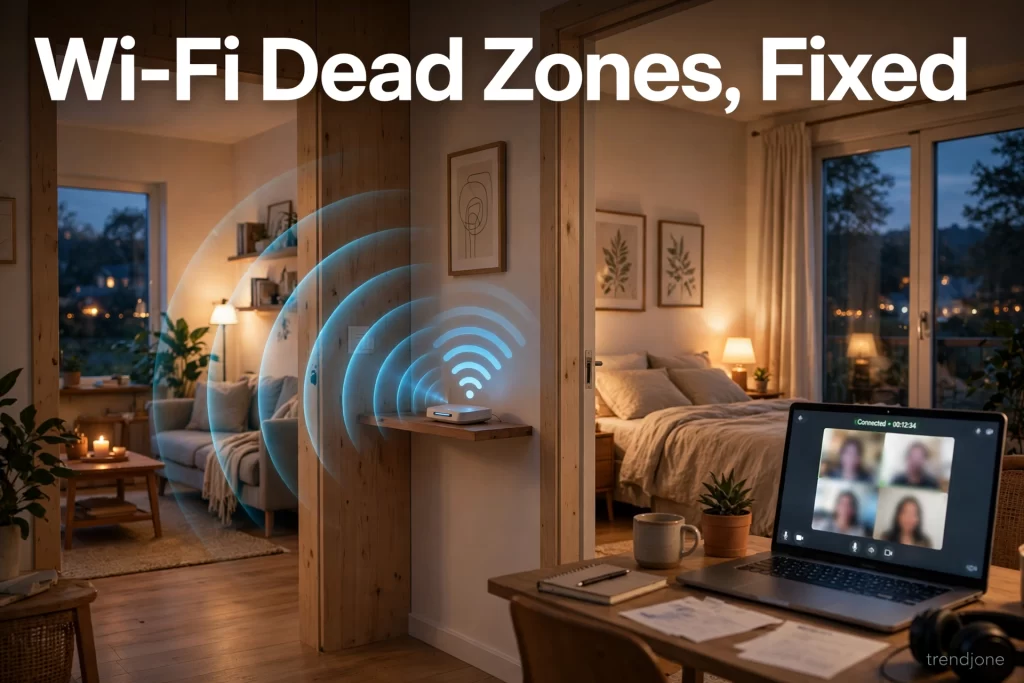
I put the mesh node in the hallway, roughly halfway between the router and the far bedroom, on an open shelf — not inside a cupboard, not on the floor. Placement matters as much as the gadget. A mesh node stuffed in a cupboard is just an expensive extender. In the hallway, it could “hear” the router clearly and still reach the bedroom and balcony.
The result was immediate and, for once, matched the box’s promise. The bedroom went from buffering to smooth video calls. The balcony, which had never held a connection, now streams music without a hiccup.
If you buy only one thing for dead zones, buy this: a mesh system, even a basic two-unit one, placed in the open, halfway to the problem room. That one change cleared the worst Wi-Fi dead zones in a single evening.
The other small gadgets worth it (and one to skip)
Beyond mesh, three smaller things earned their place in my setup. None of them is a mesh replacement, but each one took a device off Wi-Fi, which left more airtime for the rooms where Wi-Fi dead zones remained.
A longer Ethernet cable — the least glamorous purchase on this list and one of the most useful. My work desk now connects by cable instead of Wi-Fi. That one change freed up wireless capacity for everything else in the house, and my video calls stopped freezing entirely.
If your desk never moves, cable it. Wi-Fi is for devices that move; desks do not move. Cabled devices stop competing for airtime, which leaves more signal for the rooms where Wi-Fi dead zones remain. If cable clutter is the other half of the mess, start with these charging gadgets.
A small gigabit switch for the TV corner. The TV, the streaming box, and the game console were all fighting over Wi-Fi. A tiny switch lets them share one cable back to the router.
It costs little, it has no settings to fiddle with, and it removed three wireless clients from the air at once. If you want the wider picture, try these smart home gadgets.
A plug-in Wi-Fi adapter for an old laptop whose built-in wireless was from another era. The laptop was not slow; its wireless radio was. A modern USB adapter gave it a current radio, and suddenly a “dying” laptop felt fine again. Before you replace a device, check whether its Wi-Fi is the problem.
And the one to skip: the powerline adapters I tried. They send internet through your home’s electrical wiring, which sounds clever, and in some houses works well. In mine, with old wiring and the router and bedroom on different circuits, they were slower than the Wi-Fi they were supposed to replace. I returned them.
Your wiring may differ, but do not buy powerline as your first fix — try mesh first.
Room by room: how I fixed the Wi-Fi dead zones
The bedroom needed the mesh node in the hallway. Nothing else had worked there, because the signal had to pass through two walls and a bathroom full of tiles and pipes. Mesh solved it.
The kitchen needed the router move, not a gadget. Once the router was out from behind the TV and away from the metal cabinet, the kitchen signal became usable. The microwave still interferes when it runs — that is physics, microwaves and Wi-Fi share spectrum — but a recipe page loading slowly for thirty seconds is a different problem from a dead zone.
The balcony needed the mesh node plus one habit change: I stopped expecting the 5 GHz band to reach outside. The 5 GHz band is faster but shorter-range; the 2.4 GHz band is slower but travels further through walls. For music on the balcony, 2.4 GHz is plenty, and it reaches.
If your device lets you pick, use 2.4 GHz for far rooms and 5 GHz near the router. Most mesh systems do this automatically, which is another reason to prefer mesh over a manual extender.
The work desk needed the cable. No wireless fix beats a wire for a device that never moves. It is the simplest cure for Wi-Fi dead zones at a fixed desk.
What I would do differently
I would not have bought the cheap extender first. It cost me months of frustration and, ironically, more money in the end, because I eventually replaced it anyway. If I could start over, the order would be: free fixes first (placement, channel, firmware), then one mesh unit, then cables for anything stationary. That order would have saved me a year of frozen calls. It also made the Wi-Fi dead zones worse by adding a second, weaker network to cling to.
I would also have tested properly. A speed test next to the router tells you nothing about the bedroom. Walk around with your phone, run the test in each room, and write the numbers down. That five-minute survey tells you exactly where the problem is, and it stops you from buying gadgets for rooms that are already fine. For more small wins, try these 5 small gadgets.
The honest bottom line
You probably do not need faster broadband. You probably need your router in a better spot and, if your home is bigger than one room, one mesh unit in the hallway. Everything else on this list is a bonus.
Start free, measure each room, and spend only on the rooms that are still weak after the free fixes. My home went from three dead zones to zero, and the only thing I regret is the year I spent blaming the provider for a problem that was sitting behind my TV. If Wi-Fi dead zones are your problem, start with placement, then add one mesh unit.
FAQ
Do I need a mesh system, or will a range extender work?
A basic extender usually halves your speed and creates a separate network your phone clings to. Mesh keeps one network and hands your device to the strongest unit. For one stubborn room, a good extender can help; for a whole home with several dead zones, mesh is the better buy.
Is 5 GHz or 2.4 GHz better for far rooms?
2.4 GHz travels further through walls but is slower; 5 GHz is faster but shorter-range. Use 5 GHz near the router and 2.4 GHz for far rooms like a balcony. Mesh systems usually manage this switch automatically.
Will a faster broadband plan fix Wi-Fi dead zones?
Almost certainly not. Dead zones are a coverage problem, not a speed problem. A faster plan gives you a bigger number next to the router and the same dead zones everywhere else. Fix placement and coverage first. Wi-Fi dead zones need coverage fixes, not a bigger speed number.
Where should I place a mesh node?
Halfway between the router and the dead zone, in the open, at roughly chest height — a hallway shelf is ideal. Never inside a cupboard, behind furniture, or on the floor. If the node cannot hear the router clearly, it cannot help the far room. That spot clears Wi-Fi dead zones in the far rooms.
Should I use Ethernet cables at home?
For anything that never moves — a work desk, a TV, a console — yes. A cable removes that device from Wi-Fi entirely, which improves wireless performance for everything else. One long cable to your desk is often the cheapest upgrade you can make.